Lock Configuration
The B2B edition lock supports various configuration and operation methods tailored for end-users and fleet maintenance workers.
Configuring the lock
For larger fleets configuration can be done in production. Please let us know if you need a special configuration for your next order.
To configure your lock please use the I SHARE IT Service App available for iOS and Android
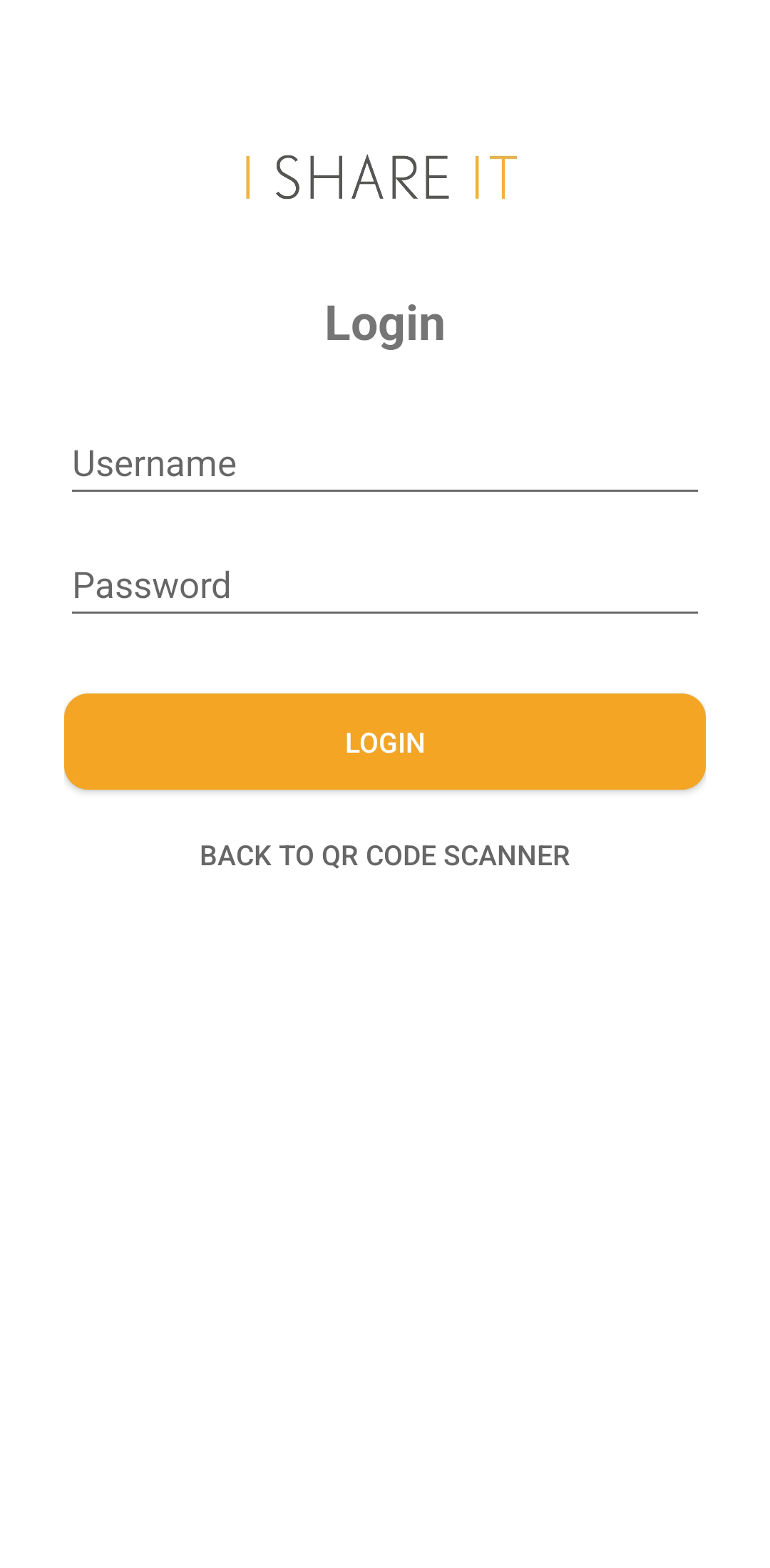
1. Login to your Account
The easiest way to connect to your lock is by logging in to your existing account which is already linked to your locks. For more details see Account Setup & Applications.
2. Select your Fleet
This step is automatically skipped if you have only one fleet in the system.
If you have more than one fleet in our system you can select the fleet the lock belongs to or select to show the locks of all fleets available.

3. Select your lock
Select the lock you want to connect to in the list of devices or use the search function to filter for it.

4. Wait for the connection
It is not possible to connect to a lock if another smartphone is already connected to it.
If you are in Bluetooth range of the lock the connection to the lock will be established by the app. Once the connection is established you can see the device name and it's battery state, firmware and hardware version on the screen.

5. Open the settings menu
Setting a new color code changes the color code your lock was delivered with. This function is only available for PRO locks.
- Click on the settings gearwheel on the bottom menu of the app. The settings screen will open and the current settings of your lock are visible.
- Customize the settings to your desired configuration (see the Settings Reference below).

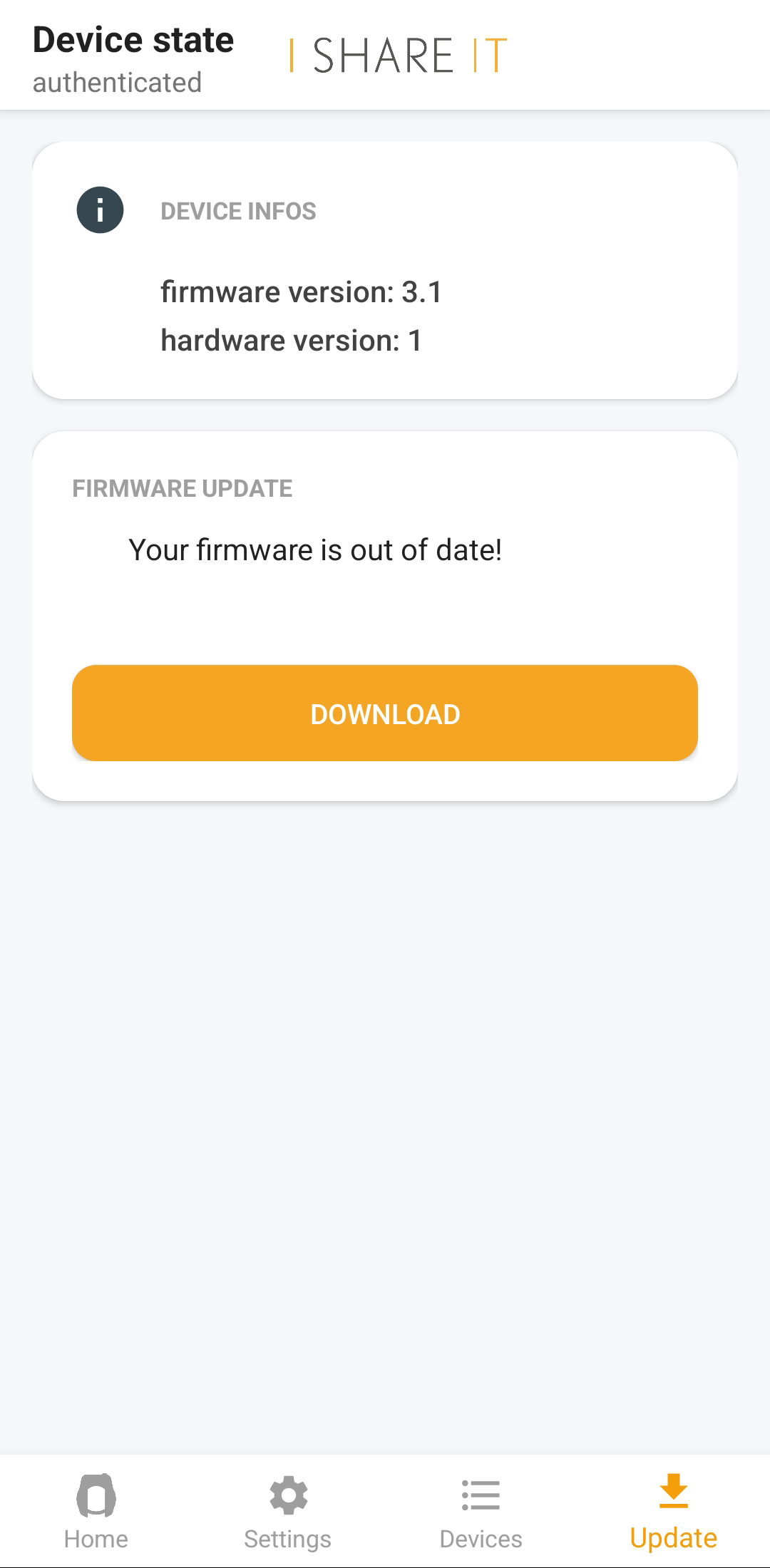
6. Update the firmware
Installing a firmware update is only possible when the lock is open.
- Click on the update button on the bottom menu of the app. The update screen will open and show your current firmware version.
- Click the "Check for Updates" button to check if a new firmware for your lock is available.
- Install the update by following the instructions in the app.
Settings Reference
The following settings can be changed via the Service App. All changes are stored permanently on the lock.
| Setting | Description | Availability |
|---|---|---|
| Alarm function | Enables or disables the motion-triggered acoustic alarm in the locked state. Disabling the alarm saves approximately 5% battery. See Alarm & Theft Tracking. | All models |
| Alarm sensitivity | Adjusts the motion detection threshold (Small, Medium, Highest). Lower sensitivity reduces false alarms. | All models |
| Alarm mode | Standard (full alarm), Silent (no acoustic signal), or Pre-alarm (short warning tone before the full alarm). Silent and pre-alarm cannot be combined. | All models |
| Sound settings | Enables or disables the individual acoustic signals (locking sound, unlocking sound, warning sounds). See the LED & Sound Signal Reference. | All models |
| Close button | Enables or disables locking via the physical button (double tap on PRO locks). When disabled, pressing the button has no locking effect. | PRO locks only |
| Service color code | Overwrites the 6-digit color code the lock was delivered with. | PRO locks only |
| Bosch Pairing | Pairs your lock with a compatible Bosch Smart e-bike to read out the e-bike status data. See Bosch Live Data. | PRO locks only |